Image Toolkit CLI - 35 Batch Processing Tools
A downloadable tool for Windows
🛠️ Image Toolkit CLI
A powerful, high-speed command-line interface (CLI) for batch processing images. With exactly 35 built-in features, you can rename, convert, resize, color-grade, apply retro filters, and strip metadata from thousands of files in seconds—all without opening a heavy GUI.
Designed for game developers, digital artists, and web designers who need to process massive folders of assets instantly. Completely standalone—no Python or external installations required!
⚙️ Installation & Setup
- Download
ImageToolkit.exeand place it in your project folder (or wherever your images are). - Open your terminal in that folder:
Windows Tip: Open the folder in File Explorer, click the top address bar, typecmd, and press Enter. - Verify it works by checking the help menu:
ImageToolkit.exe -h
🚀 Basic Usage
The tool requires an input directory (-i) and an output directory (-o). By default, it looks for all files (*), but you can filter by extension using (-e).
Syntax:
ImageToolkit.exe -i <input_folder> -o <output_folder> [OPTIONS]🧰 Feature Reference (The 35 Tools)
Core I/O
-i, --input(Required): The folder containing your source images.-o, --output(Required): The folder where processed images will be saved.-e, --ext: Filter the input files by extension (e.g.,png,jpg). Default is*.
Renaming (1–3)
--rename-prefix TEXT: Adds a specific word/text to the start of every filename.--rename-suffix TEXT: Adds a specific word/text to the end of every filename.--rename-num: Completely renames files to sequential numbers (e.g.,0001,0002).
Format & Compression (4–5)
--convert FORMAT: Converts all images to a new format (e.g.,webp,png,jpeg).--compress INT: Sets the compression quality for JPEG/WEBP exports (1-100).
Geometry & Sizing (6–15)
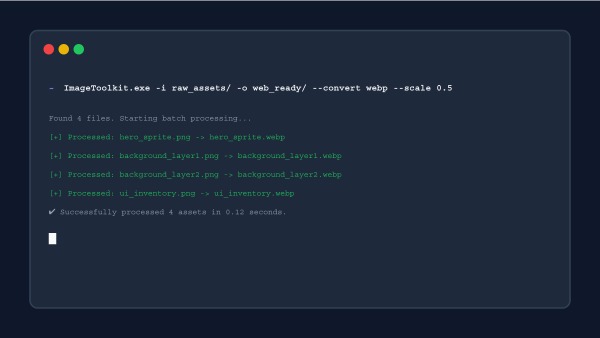
--resize WxH: Force-resizes the image to an exact width and height (e.g.,1920x1080).--scale FLOAT: Scales the image by a percentage multiplier (e.g.,0.5for half size,2.0for double).--crop-center WxH: Crops the exact center of the image to the specified dimensions.--thumbnail WxH: Resizes the image to fit within the dimensions while keeping the original aspect ratio intact.--pad WxH: Pads the image to the specified size, adding transparent (or black) space around it.--rotate FLOAT: Rotates the image by the specified degrees.--flip-h: Flips the image horizontally (mirror effect).--flip-v: Flips the image vertically (upside down).--border INT: Adds a solid black border of the specified pixel thickness around the image.--round-corners INT: Rounds the corners of the image by the specified pixel radius.
Color Adjustments (16–22)
--grayscale: Converts the image to black and white.--invert: Inverts all colors (creates a negative effect).--swap-bgr: Swaps the Red and Blue color channels (RGB to BGR).--brightness FLOAT: Adjusts brightness (1.0is original,0.5is half,1.5is 50% brighter).--contrast FLOAT: Adjusts contrast using the same1.0baseline multiplier.--sharpness FLOAT: Adjusts edge sharpness using the1.0baseline multiplier.--saturation FLOAT: Adjusts color saturation (0.0is grayscale,2.0is highly saturated).
Filters, Retro & Effects (23–31)
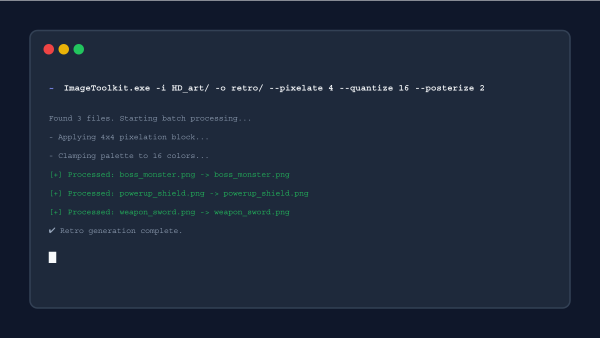
--blur FLOAT: Applies a Gaussian blur with the specified radius.--pixelate INT: Pixelates the image (e.g.,10creates 10x10 pixel blocks) for a retro look.--emboss: Applies a 3D-style embossing filter.--sepia: Applies a classic vintage brown/yellow sepia tone.--posterize INT: Reduces the number of color bits per channel (1-8). Lower numbers create a harsh retro aesthetic.--solarize INT: Inverts all pixel values above a specific threshold (0-255).--auto-contrast: Automatically calculates and normalizes the contrast to fix washed-out images.--quantize INT: Reduces the image to a strictly limited color palette (e.g.,16colors).--color-to-alpha HEX: Converts a specific hex color to transparent (e.g.,#FFFFFFto remove white backgrounds).
Metadata & Overlays (32–35)
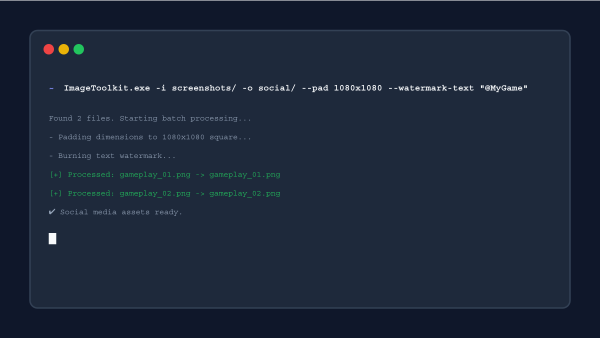
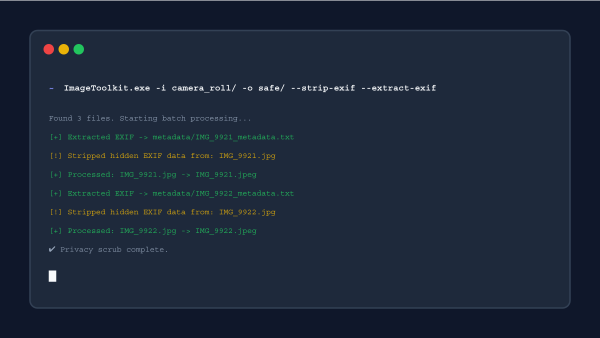
--watermark-text TEXT: Burns a simple white text string into the top-left corner of the image.--watermark-image FILE: Overlays a chosen PNG image (like a logo) in the top-left corner.--strip-exif: Completely removes all hidden camera data, GPS coordinates, and software tags from the image file to protect privacy.--extract-exif: Reads the hidden metadata and exports it as readable.txtfiles in a dedicatedmetadata/subfolder.
📖 Example Workflows
1. The "Web Asset Optimizer"
Convert a folder of massive PNG files into lightweight, 80%-quality WEBP files, scaled down to 50% of their original size:
ImageToolkit.exe -i raw_art/ -o web_ready/ -e png --convert webp --compress 80 --scale 0.52. The "Retro Game Sprite Maker"
Take high-resolution graphics, shrink them to 64x64, pixelate them, reduce the color palette to 16 colors, and rename them sequentially:
ImageToolkit.exe -i sprites/ -o retro/ --thumbnail 64x64 --pixelate 2 --quantize 16 --rename-num3. The "Social Media Batch Prep"
Take random-sized screenshots, pad them to a 1080x1080 square, round the corners, auto-fix the contrast, and add your logo watermark:
ImageToolkit.exe -i screenshots/ -o social/ --pad 1080x1080 --round-corners 30 --auto-contrast --watermark-image logo.png4. The "Privacy Scrubber"
Remove all GPS and camera data from your photos before uploading them to the internet, while extracting a backup of the metadata to text files just in case:
ImageToolkit.exe -i camera_roll/ -o safe_uploads/ --strip-exif --extract-exifPurchase
In order to download this tool you must purchase it at or above the minimum price of $2 USD. You will get access to the following files:
Leave a comment
Log in with itch.io to leave a comment.